Attack on Titan Wallpapers: The Most Iconic Scenes and How to Use Them
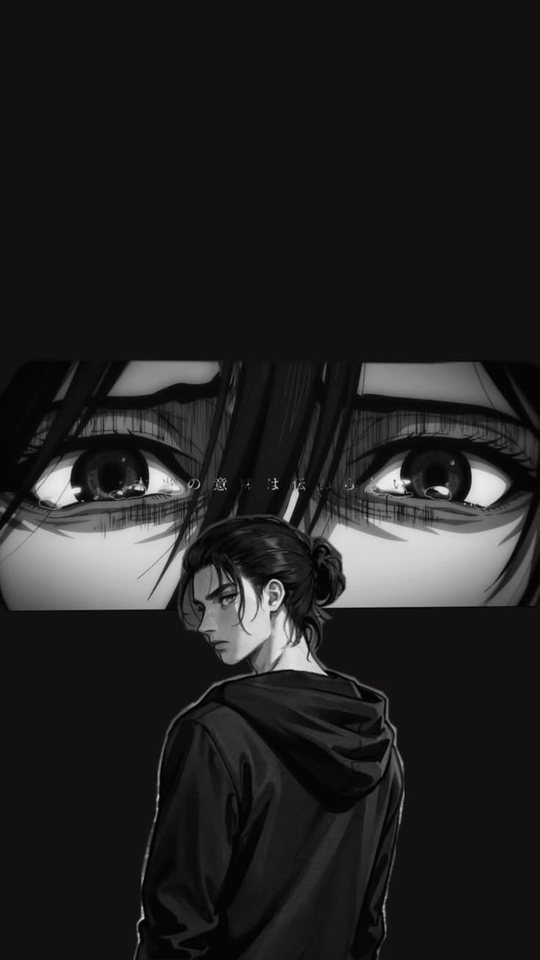
Attack on Titan looks different from most anime wallpapers, and that difference is exactly what makes it work. This guide covers the most recognisable scenes and characters — Eren, Levi, Mikasa, the Walls and the Rumbling — explains the muted palette the series uses, and shows which moments stay readable at small size. It also walks through the cropping habits that stop a face from being sliced off by the clock or the swipe bar.
Why the muted palette works on a phone
Attack on Titan deliberately avoids bright, saturated colour. Its palette is built from browns, dull greens, greys and a washed sky-blue, with the occasional red only for blood and the Survey Corps' cloaks. That restraint is a strength on a phone. Loud anime art can compete with the clock and the icons, but AoT's quiet tones sit behind them without fighting. The series also uses a lot of negative space — open sky, empty walls, flat ground — and empty space is exactly what a lock screen needs. The one caution is contrast. Because the palette is muted, an AoT image can look flat and grey on a bright display, so pick versions with a clear light source, such as a sunrise behind the Walls or the flare of a green signal smoke.
Eren: three versions, three moods
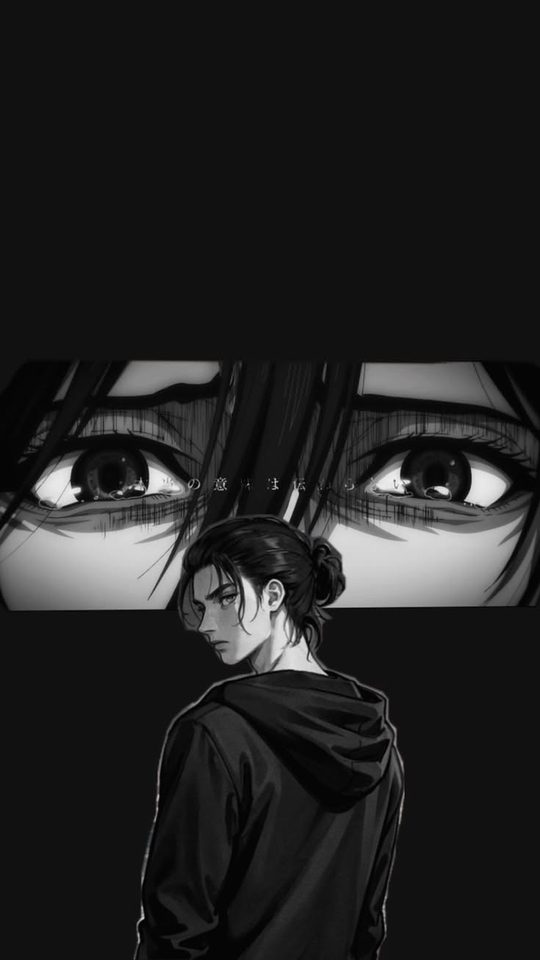
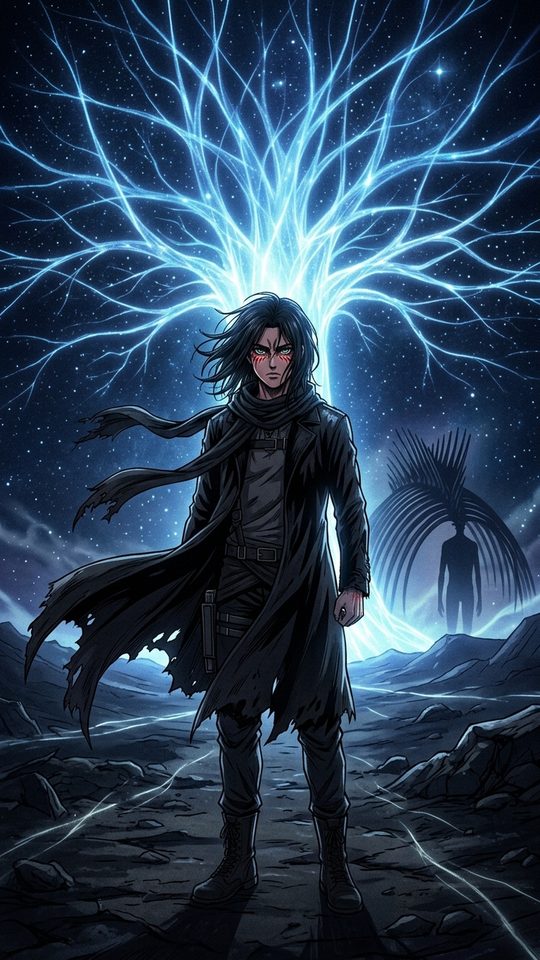
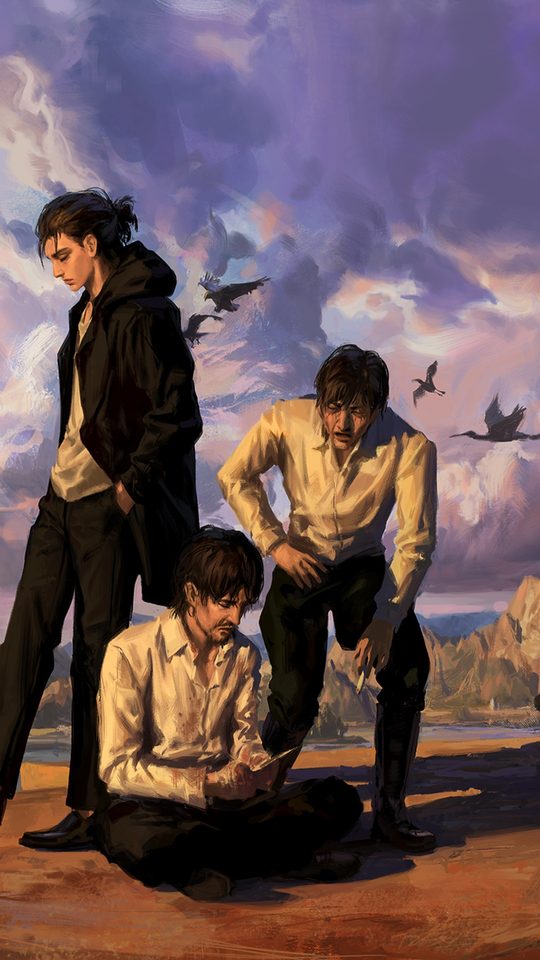
Eren Yeager changes more than any other character in the series, and each version makes a different wallpaper. As a young scout he is bright and determined — brown hair, green eyes, a beige jacket and the crossed wings of the Survey Corps — and this version suits a home screen, where the lighter tones read well under icons. As the older, colder Eren of the later seasons he is darker and leaner, with longer hair and a flat, unreadable expression; this is the strongest lock-screen version, because the mood is clear even at small size. As the Founding Titan he is almost abstract, a towering skeletal figure wreathed in steam, which makes a dramatic wallpaper but needs a wide crop to include the scale. Keep the green eyes visible in any Eren image, because that colour is his one reliable accent.
Levi and Mikasa: the cleanest crops in the cast
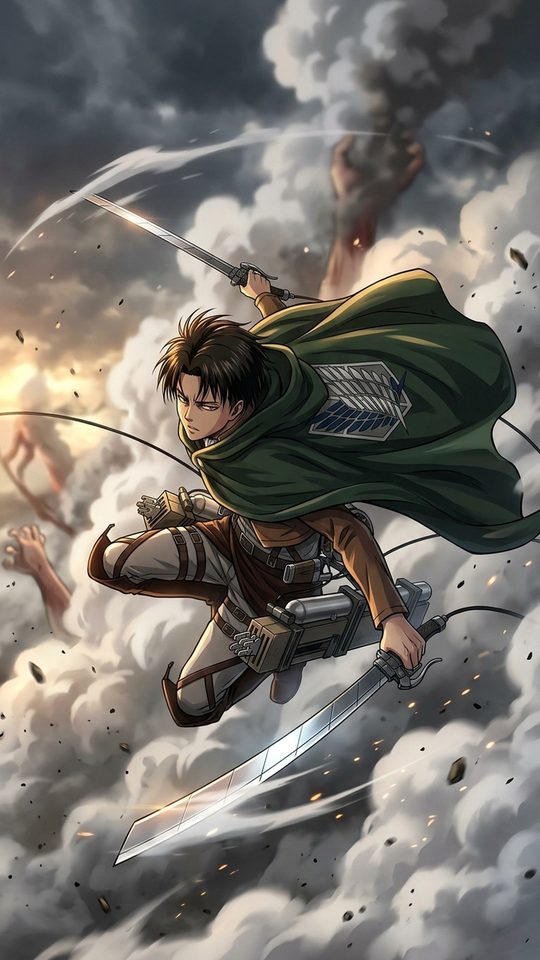
Levi Ackerman and Mikasa Ackerman are the two easiest characters to turn into a wallpaper, for the same reason: their designs are simple and high-contrast. Levi is built from black hair, grey eyes, a white shirt under a dark jacket, and the green Survey Corps cloak. His art is usually still and centred, so a straightforward bust crop works, and the cravat-and-cape silhouette reads instantly even when the detail is lost. Mikasa is similar but warmer — short black hair, a red scarf, and the same dark uniform. The red scarf is the single most useful detail in the whole series for a phone, because it gives an otherwise grey image one bright, recognisable colour. For both, crop to the shoulders and keep the face in the middle band of the screen, and let the cloak or scarf fill the lower third. A short checklist for these two:
- Keep the red scarf (Mikasa) or the green cloak (Levi) inside the frame; both are identity markers.
- Place the eyes just above the centre, clear of the clock.
- Avoid full-body action poses; they shrink into unreadable shapes.
- Favour a plain background so the figure stands out against the muted palette.
The Walls and the Rumbling: scale over faces
Some of the best Attack on Titan wallpapers have no character in them at all. The Walls — the towering grey ramparts of Paradis — make excellent abstract wallpapers, because their vertical lines and flat stone suit a portrait screen and their grey tone never fights the clock. A simple image of a Wall against a pale sky is one of the calmest wallpapers you can set. The Rumbling is the opposite: a vast line of Colossal Titans marching under a red-orange sky, which gives the muted series its one genuinely dramatic palette. That red sky is bright enough to read clearly at small size, so Rumbling art works as a lock screen even when the individual Titans are too small to make out. For these landscape images, the crop matters more than the subject: keep the horizon in the lower third and let the sky fill the top, so the clock sits against open colour.
Practical cropping so faces are not cut off
Faces are the easiest thing to ruin when you crop a wallpaper, and AoT's art makes it a real risk because so many frames are horizontal and action-heavy. A few habits solve most of it. First, work from a portrait source if you can; scaling a wide shot up to fill a tall screen is what pushes heads out of frame. Second, when you must crop a wide image, decide whether the face or the scene is the subject and sacrifice the other — half a face is worse than no face. Third, remember the two danger zones: the top of a lock screen, where the clock sits, and the bottom, where the swipe bar sits. Keep eyes below the clock and chins above the bar. Finally, check the result at true size on the phone rather than in the editor, because a crop that looks balanced on a laptop can sit awkwardly once the real clock appears.
Frequently asked questions
Which Attack on Titan character makes the best wallpaper?
Levi and Mikasa are the easiest, because their designs are simple and high-contrast and their art is usually calm. Eren's older, colder version is the strongest for a lock screen, while his younger scout design suits a home screen. For an image with no character at all, a plain shot of the Walls works surprisingly well.
Why do Attack on Titan wallpapers look grey on my phone?
The series uses a deliberately muted palette of browns, greys and dull greens, so its images have less contrast than most anime art. On a bright display they can look flat. Choose frames with a clear light source, such as a sunrise or a red sky, to give the picture a bright point to anchor it.
Is the Rumbling good for a lock screen?
Yes, if you crop for the sky. The red-orange sky above the marching Titans is the brightest colour in the series and reads clearly at small size. Keep the horizon low so the clock sits against open colour, and let the line of Titans fill the lower part of the screen.
How do I crop a wide Attack on Titan frame without cutting off a face?
Start from a portrait image if possible, and when you must use a wide frame, choose one where the face sits near the centre of the image before you crop. Keep the eyes below the clock zone and the chin above the swipe bar, and accept losing the rest of the scene rather than showing half a face.